
This article provides information on resolving the #VALUE! error in TRANSPOSE.
Problem: The formula isn't entered as an array formula
For example:
=TRANSPOSE(B2:C8)
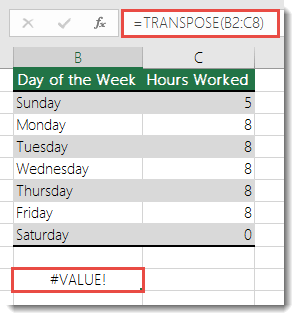
The formula results in a #VALUE! error.
If you're using Excel for Microsoft 365, enter the formula in the top-left cell of the output range and press ENTER. Excel automatically spills the results into neighboring cells.
Solution: Convert the formula into an array formula over a range that matches your source range in size. To do this:
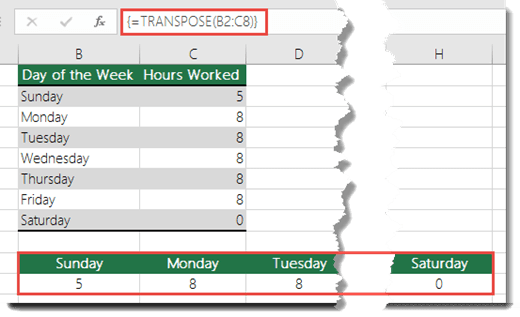
- Select a range of empty cells in the worksheet. The number of blank cells you select should equal the number of cells you're trying to copy. In this case, select a range that's 7 columns wide by 2 columns tall.
- In versions of Excel that don't support dynamic arrays, enter the formula as a legacy array formula by pressing CTRL+SHIFT+ENTER. Excel automatically wraps the formula in braces {}. If you try to enter them yourself, Excel displays the formula as text.
Note
In earlier versions of Excel that don't support dynamic arrays, you must enter the formula as a legacy array formula by selecting the output range, entering the formula, and pressing CTRL+SHIFT+ENTER. Excel inserts the curly brackets for you. For more information about array formulas, see Guidelines and examples of array formulas.
Need more help?
You can always ask an expert in the Excel Tech Community or get support in Communities.
See also
How to avoid broken formulas in Excel
Detect errors in formulas in Excel