
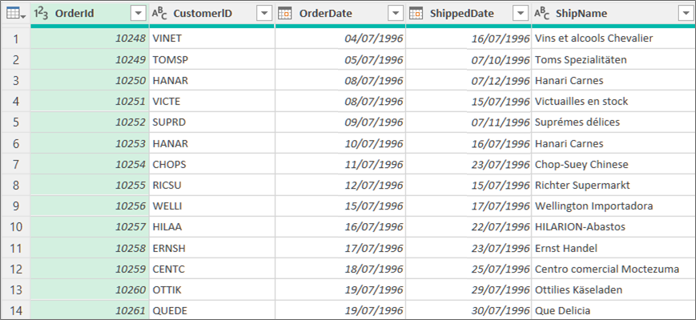
You can manage several aspects of Data Preview in the Power Query Editor by setting different options. Several of these options have performance implications that are helpful to know.
Set background data options
You can control how Preview data downloads whether directly or in the background.
Do one of the following:
- In Excel, select Data > Get Data > Query Options.
- In Power Query Editor, select File > Options and settings > Query Options.
In the left pane, under GLOBAL, select Data Load, and then under Background Data, select one of the following options:
- Always allow data previews to download in the background
- Allow data previews to download in the background according to each file's setting
- Never allow data previews to download in the background
In the left pane, under CURRENT WORKBOOK, select Data Load, and then under Background Data, select or clear Allow data previews to download in the background.
Set different ways to view Data Preview
You can view data in a monospaced font or reveal special characters, such as newlines.
Set options for the current Preview Data
In Power Query Editor, select View, and then select or clear one of the following options in the Data Preview group:
- Monospaced Display preview contents using a monospaced font.
- Show whitespace Show whitespace and newline characters.
- Column quality Show column quality details in data preview.
- Column distribution Show column value distribution in data preview.
- Column profile Show column profile in details pane.
Set options for all your workbooks
Select File > Options and settings > Query Options > Power Query Editor > Data Preview.
In the left pane, under GLOBAL, select Power Query Editor.
In the right pane, under Data Preview, select or clear the following options:
- Display preview contents using a monospaced font
- Show whitespace and newline characters
Set column profiling
By default, column profiling is based on the first 1,000 rows of data to improve performance while working in the Power Query Editor. For more complete statistics and profiling information, you can switch to profiling based on the entire dataset. This option may take longer to calculate for large datasets.
To open a query, locate one previously loaded from the Power Query Editor, select a cell in the data, and then select Query > Edit. For more information see Create, load, or edit a query in Excel (Power Query).
At the bottom right-hand corner of Data Preview pane, select one of the commands to the right of the columns and row count:
- Column profiling based on top 1000 rows
- Column profiling based on entire dataset