
A circular reference happens when a formula refers to itself, directly or indirectly. For example, if cell D3 contains =D1+D2+D3, Excel can't finish the calculation because D3 depends on D3.
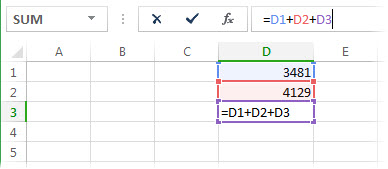
How to find and fix the cell or cells with a circular reference
- Go to Formulas > Error Checking > Circular References.
- Select each listed cell address and update the formula so it no longer points back to itself.
- Use Formulas > Trace Precedents or Trace Dependents to follow relationships if the issue spans multiple cells.
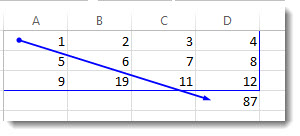
- Repeat until the status bar no longer shows Circular References.
Tip
Press Ctrl+G (Windows) or Control+G (Mac) to jump quickly to referenced cells.
Example circular reference patterns
| Scenario | Example | Why it creates a circular reference |
|---|---|---|
| Direct self-reference | Cell A1 contains =A1+A2 |
A1 depends on its own value. |
| Formula includes its own cell in a range | Cell F3 contains =SUM(A3:F3) |
F3 is included in the range being calculated. |
| Indirect loop across cells | A1 contains =B1+1, and B1 contains =A1+1 |
Each cell depends on the other. |
Understand status bar and warning behavior
- The status bar can show Circular References and one cell address.
- If circular references exist on another worksheet, you might only see Circular References without an address.
- Excel shows a warning message the first time a circular reference is created in a session. Later circular references might not show the same warning dialog.
Tip
Watch this short example for one common circular reference case.
[!VIDEO 0d62be55-8ccd-43b6-8472-0fc7debb4521]
Troubleshoot when Error Checking or Circular References isn't available
These commands can vary by platform and build.
- Windows desktop and Mac desktop: Use Formulas > Error Checking > Circular References.
- Excel for the web and mobile apps: Formula auditing commands can be limited. Open the file in a desktop app to locate and fix circular references.
- If you don't see the command, use the search box in Excel and search for
Error CheckingorCircular References. - If the command is disabled, select a worksheet cell first, then try again.
Why circular reference alerts can continue after edits
You might still see alerts for one of these reasons.
- Another circular reference remains on a different worksheet.
- Another open workbook still has a circular reference.
- A formula chain still points indirectly back to itself.
- Iterative calculation is enabled, so circular references are allowed intentionally.
Learn about the circular reference warning message
The first time Excel finds a circular reference, it displays a warning message. Select OK, and then fix or allow the formula. When you close the warning, Excel might display either 0 or the last calculated value in the cell. If you suspect a circular reference in a cell that doesn't show 0, try selecting the formula in the formula bar and pressing Enter.
Allow circular references with iterative calculation
You might allow circular references for specific financial or engineering models where repeated recalculation is intentional. In most worksheets, keep iterative calculation turned off.
- In Excel for Windows desktop, go to File > Options > Formulas.
- In Excel for Mac desktop, go to Excel > Preferences > Calculation.
- Select Enable iterative calculation (Windows) or Use iterative calculation (Mac).
- Set Maximum Iterations to control the number of recalculations.
- Set Maximum Change to control when recalculation stops.
By default, Excel stops after 100 iterations, or when values change by less than 0.001.
Platform and version differences
- Excel for Windows desktop and Mac desktop provide full circular reference tracing tools.
- Excel for the web supports formula calculation, but circular reference troubleshooting tools can be more limited than desktop.
- On iOS and Android, use a desktop app for complete tracing and correction workflows.
Need more help?
You can always ask an expert in the Excel Tech Community or get support in Communities.
