
Student AI Guidelines let you communicate clear expectations about AI use for each assignment. When you set a guideline, students see it when they open the assignment, along with an option to launch Microsoft Copilot.
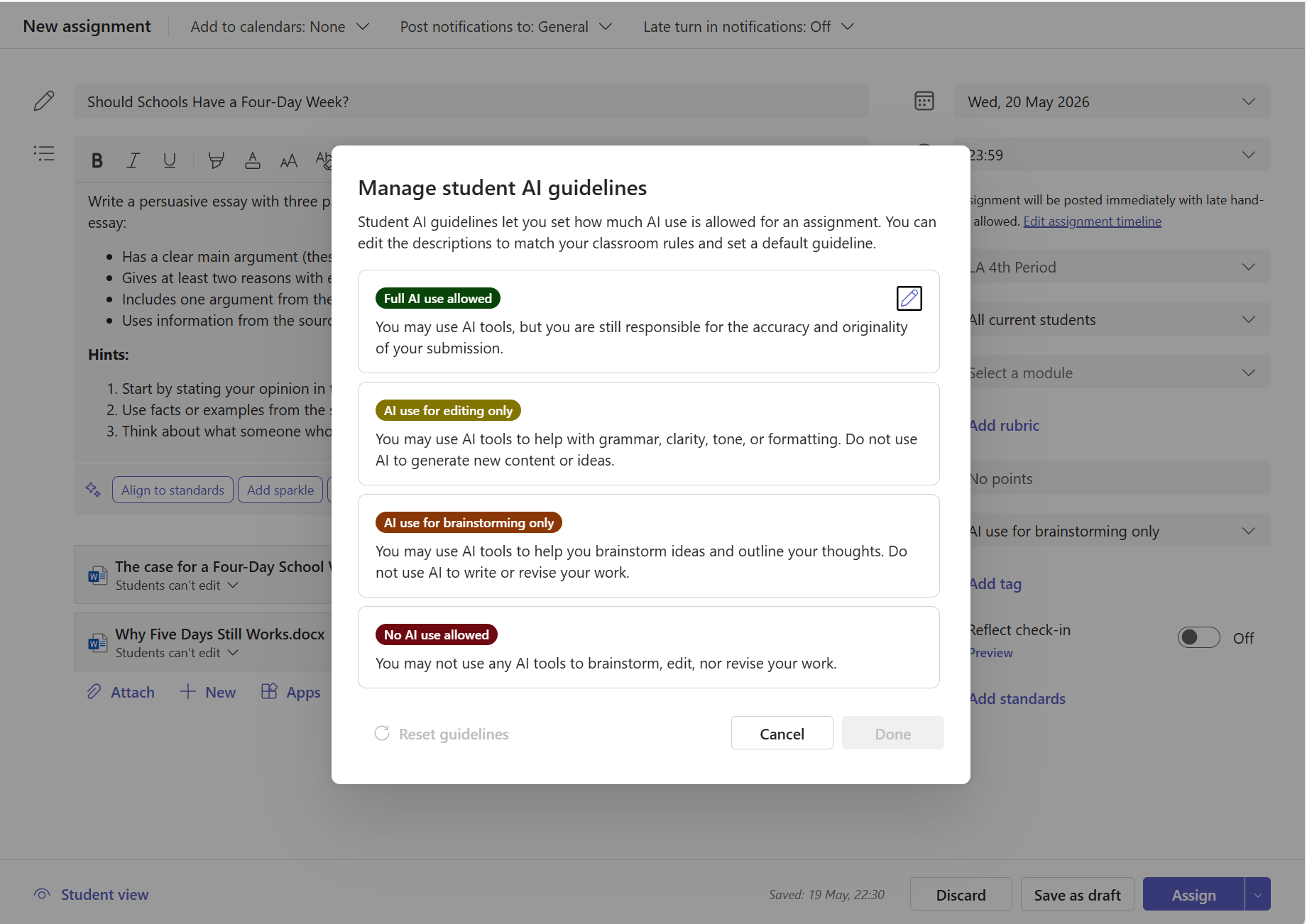
Set an AI guideline on a new assignment
In your class team, select Assignments.
Select New assignment and fill in the assignment details.
On the right side of the assignment, select the Set AI guidelines dropdown.
Choose a guideline level:
- Full AI use allowed — Students may use AI tools, but they are still responsible for the accuracy and originality of their submission.
- AI use for editing only — Students may use AI tools to help with grammar, clarity, tone, or formatting. They should not use AI to generate new content or ideas.
- AI use for brainstorming only — Students may use AI tools to brainstorm ideas and outline their thoughts. They should not use AI to write or revise their work.
- No AI use allowed — Students must complete the assignment entirely on their own without AI tools at any stage.
Select Assign to post the assignment.
Tip
If no guideline is set, students see the assignment without any AI guidance — the same experience as before this feature.
Change or remove a guideline
- Open the assignment and select Edit assignment.
- Select the Set AI guidelines dropdown.
- Choose a different level, or select No selection to remove the guideline.
- Save your changes.
What students see
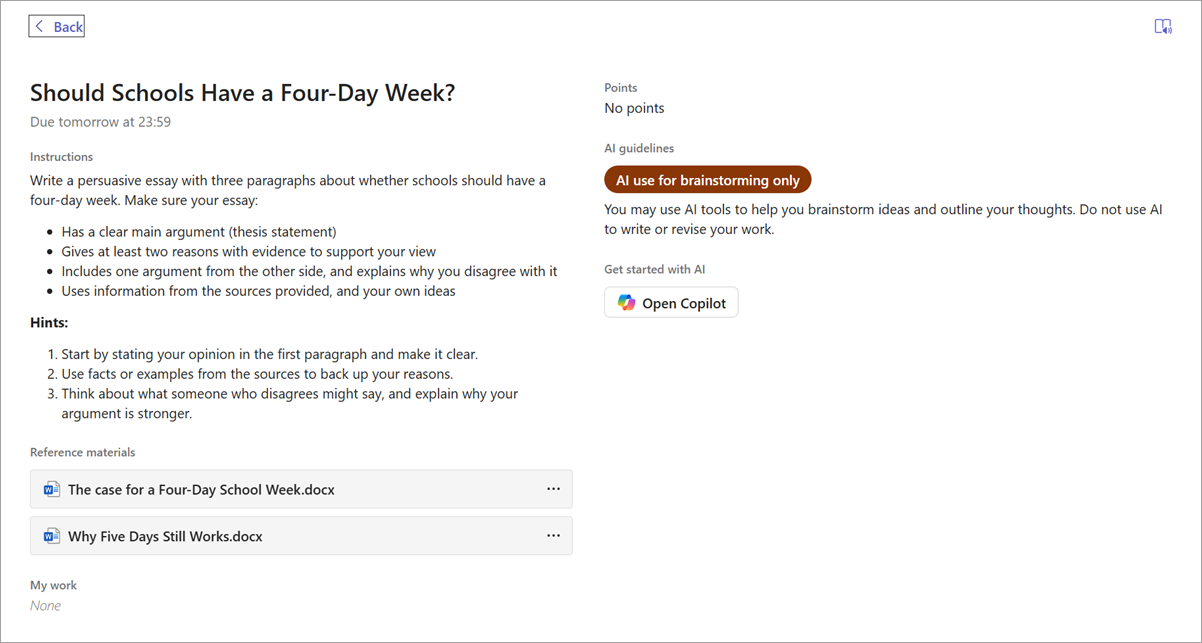
When you set a guideline on an assignment, students see an AI guidelines section on the right side of their assignment view. The section shows:
- The guideline level name (for example, "Full AI use allowed") in color.
- A description of what is expected.
- A Copilot button that opens Microsoft 365 Copilot so they can get started within the boundaries you have set.
If the guideline is "No AI use allowed," the Copilot launch option is not shown.
Preview the student experience
Before you assign, select Student preview at the bottom of the assignment creation screen. This shows exactly what students will see, including the AI guideline and Copilot launch option.
Things to keep in mind
- Student AI Guidelines are informational. They communicate your expectations but do not technically block students from using AI tools outside of the assignment.
- You can customize the title and description text for each guideline level to match your school AI policy. See Manage Student AI Guidelines in Microsoft Teams for details.
- Guidelines apply per assignment. You set them individually when creating or editing each assignment.