
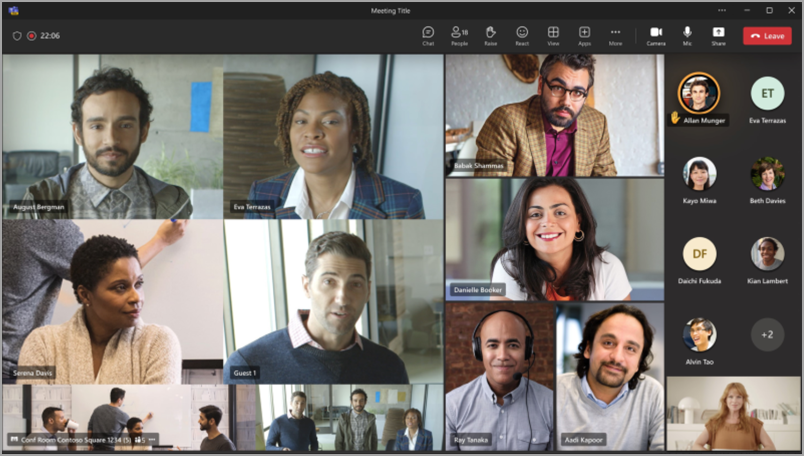
Opting in to create your Recognition profile for Microsoft Teams can greatly improve your hybrid meetings. All meeting participants, both in the Teams Room and attending remotely, will have their experience enhanced if in-room participants create face and voice recognition profiles. These profiles allow the intelligent cameras and speakers in the room to recognize you and label you appropriately in meetings, add your name to your video frame and identify you in the meeting transcript, and make you searchable in the list of participants.
Note
IntelliFrame and Intelligent speaker for in-room attendees is only available to organizations with a Microsoft Teams Rooms Pro license. Online attendees can always experience IntelliFrame, regardless of license.
How it works
To be recognized from the meeting room, schedule a Teams meeting. Invite a Teams meeting room and any other participants both physically present and remote, and then join the meeting.
Before you attend a meeting in an equipped Teams Room, you can create a Recognition profile. This will allow any supported camera and speaker to recognize your face and your voice and identify you in any meeting with no further action on your part.
Note
IntelliFrame supports a maximum of 12 people in the Teams Room and no more than 64 total meeting participants.
Creating voice and face recognition profiles
To be recognized by the camera and speaker, you first need to create a voice profile and a face profile. Once recognized, the camera and speaker will automatically place your name on your video feed and in the chat transcript when you speak. You will also be searchable in the Participants list.
Recognition profiles are not required to enjoy the IntelliFrame or Intelligent speaker experience. Participants who have not set up these profiles will be labeled as guests.
Note
Recognition will only show up in your settings if your IT admin has turned on that feature. Contact them to learn more.
- On Teams for desktop, go to Settings and more
 > Recognition. This setting is only available if enabled by your organization. If you don’t see it, contact your IT admin.
 - To set up your voice profile, select Start voice capture under Voice recognition.
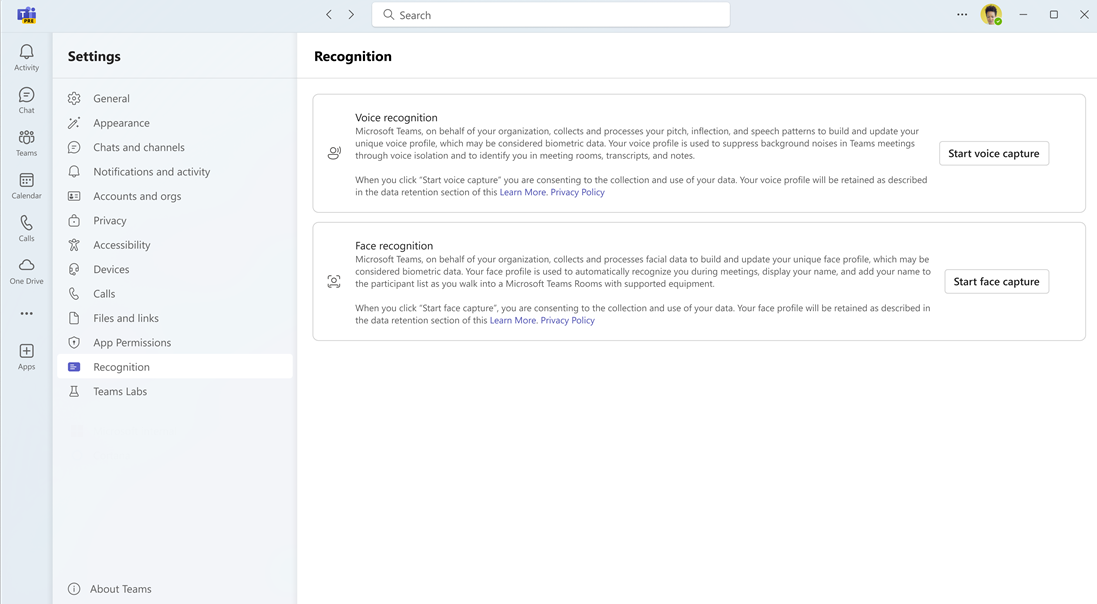
After opting in, Teams will begin generating your voice profile at the next eligible meeting.
After Teams finishes generating your voice profile, you will see a Voice profile complete indicator underneath the Voice recognition section.
If you do not want to wait for Teams to generate this voice profile, you can manually enroll your voice. This functionality is also available if you want to update your voice profile after it’s been generated.
- To manually enroll, select Create or Update.
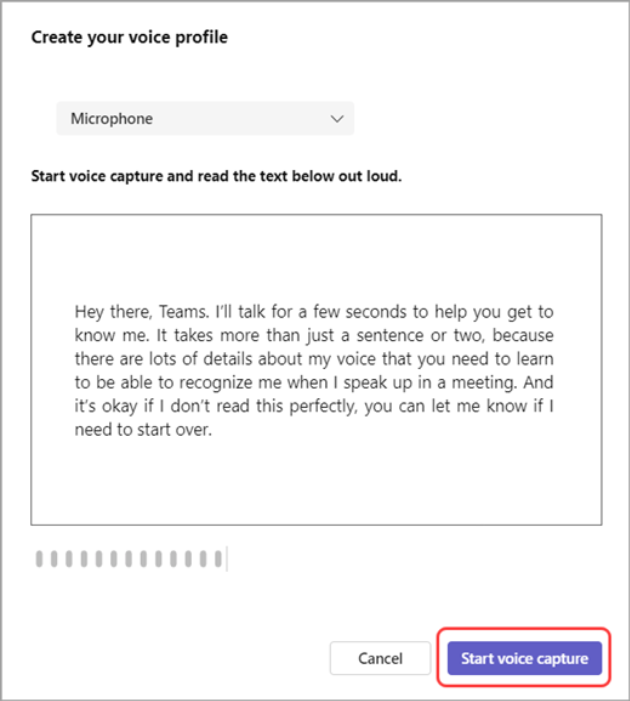
- You’ll be asked to read a passage into your microphone. Make sure your mic is selected from the device dropdown menu.
- Select Start voice capture and read the text.
Tip
Record your voice profile in a quiet location, using a high-quality microphone for best results.
- Select End voice capture when you're done.
- You can start face recognition setup right after you're done creating your voice profile, or select Close to do this a different day.
Finally, make sure to enroll your Face profile as well to complete your Teams Recognition profile.
Tip
Take your photos in a well-lit room for the best results.
Select Start face capture under Face Recognition.
Follow the prompts to take nine pictures of your face.
Once both profiles are successfully generated, you will be automatically detected in all future meetings. If you wish to update or delete your voice or face profiles, visit this tab again.
Update or remove your voice or face profile
You can re-enroll your voice or face profile if you are experiencing issues with the dependent features such as voice isolation or speaker attribution.
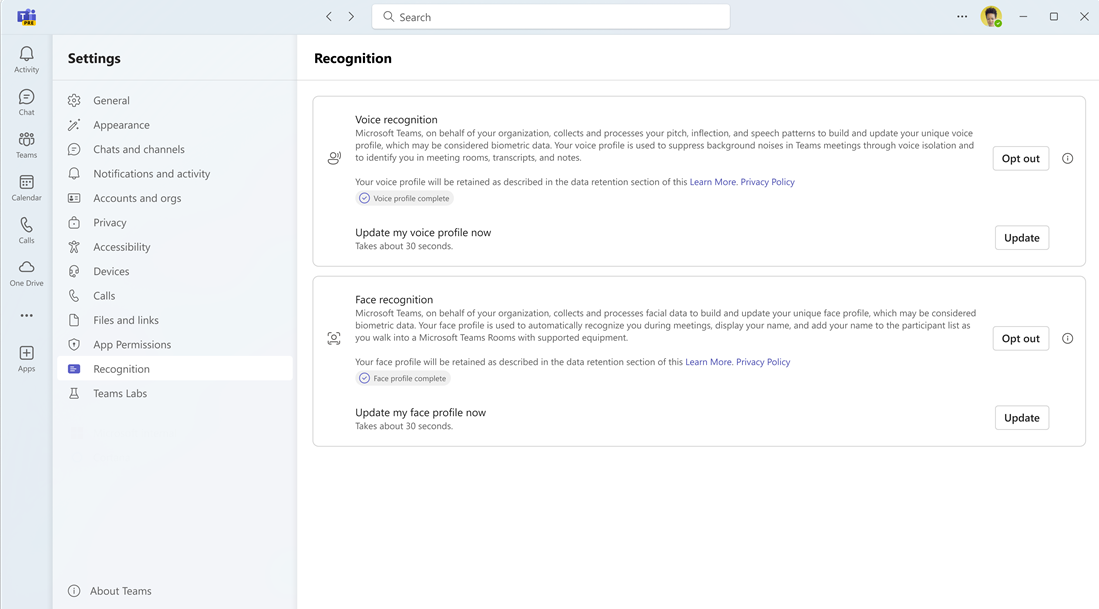
If you Opt out to delete your voice or face profile, your speech won't be identified in future meetings.
In Teams, select Settings and more
> Settings
 > Recognition.
Under Voice recognition or Face recognition, select Update to re-enroll your profile or select Opt out to delete your profile.
Export your voice and face data
If you enrolled your voice by reading a passage out loud, this voice clip is available for exporting. To export:
Go to Settings and more
> Settings
> Recognition.Select Export to download your data. The data will be saved directly to your device's Downloads folder.
Data usage and privacy
Your face and voice profiles are used only for the purposes for which you have provided direct consent. Microsoft will not use these profiles for any other purpose. For more information on how we handle your personal data, please see the Microsoft Privacy Statement. If you would like access to your face or voice profile data at any time, please contact your IT admin.
Your face profile will be deleted if it has been unused for one year.
Notes
- For the camera to function properly, the meeting room must be added to the invite. To learn how to add a room to a meeting from Teams or Outlook, see Microsoft Teams Rooms (Windows).
- If a participant appears blurry on the screen, try rotating the camera slightly.
- Occasionally, the camera may identify inanimate objects as people. This likely occurs due to movement, either through the table being shaken, shadows, or wind moving an object in the background. This misidentification should cease when the movement does.
- Recognition works best when participants are less than 5 meters from the camera.
- Framing attendees works best when they are sitting at least a meter apart.
- If more than 64 people are invited to a meeting, IntelliFrame will be automatically turned off. If there are more than 12 people in the Teams Room, a message will appear in the Participants list telling you that not all participants could be identified.
Related topics
Enhance hybrid meetings with Microsoft IntelliFrame for Teams Rooms