You can delete specific files or photos on Microsoft OneDrive, or you can delete entire folders and all the items in them. If you need to, you might be able to restore deleted files from the OneDrive recycle bin.
- On your taskbar, select File Explorer
 .
.
- Select your OneDrive folder, select the items you want to delete, and press the Delete key on your keyboard.
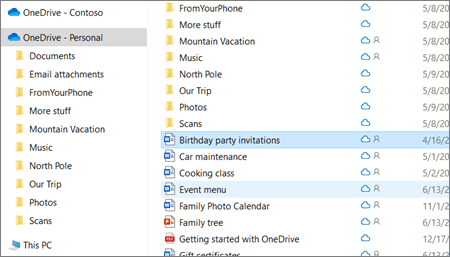
Delete shared items?
If you delete an item that has been shared, you will delete it for everyone. OneDrive may prompt you to confirm if it was intentional:
Delete items from your OneDrive, your hard drive, or both
Delete from your OneDrive but not your computer
If you want to keep a file, photo, or folder on your computer, but not on OneDrive, use File Explorer or Mac Finder to move the file outside your OneDrive folder to a different folder on your computer.
Delete from your computer but not your OneDrive
If you want to keep a file, photo, or folder on your OneDrive, but not on your computer (because you don't want it to take up space), put the file in your OneDrive folder, then turn on Files On-Demand (Windows) or Files On-Demand (Mac). You'll still see the file in the OneDrive folder on your computer, but it will take up zero hard drive space.
You can also Choose which OneDrive folders to sync to your computer so that you only see certain folders on your computer.
Delete from both your OneDrive and your computer
If the file or folder in in your OneDrive, use File Explorer or Mac Finder to find and delete the file, photo, or folder.
Deleting lots of items at once
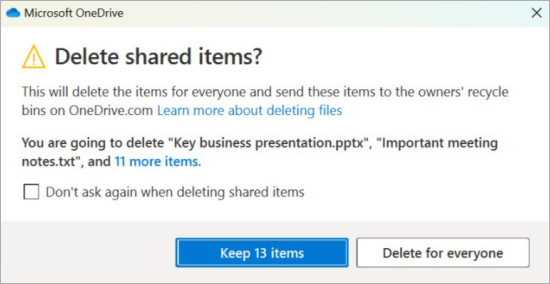
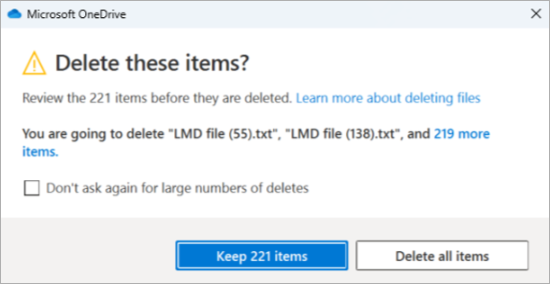
When lots of files are deleted all at once, OneDrive may prompt you to confirm if it was intentional.
Delete files to free up storage
Once you delete files from OneDrive and the OneDrive recycle bin, there may be a short delay in seeing that reflected in your OneDrive account's storage availability.
Sign in to your Microsoft account and see your storage quota.
Note
If a Microsoft 365 subscription has expired, you'll need to renew to get the same storage quota again.
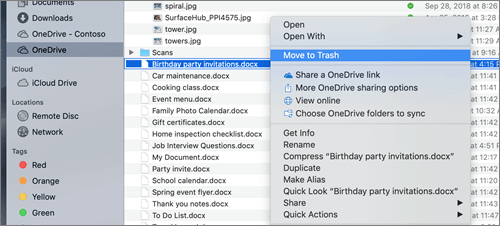
- Open a Mac Finder window.
- Navigate to the correct OneDrive folder, and select the item or items you want to delete.
- Right-click the item or items, then select Move to Trash. You can also drag and drop the item or items from the folder to your Trash.
Delete items from your OneDrive, your hard drive, or both
Delete from your OneDrive but not your computer
If you want to keep a file, photo, or folder on your computer, but not on OneDrive, use File Explorer or Mac Finder to move the file outside your OneDrive folder to a different folder on your computer.
Delete from your computer but not your OneDrive
If you want to keep a file, photo, or folder on your OneDrive, but not on your computer (because you don't want it to take up space), put the file in your OneDrive folder, then turn on Files On-Demand (Windows) or Files On-Demand (Mac). You'll still see the file in the OneDrive folder on your computer, but it will take up zero hard drive space.
You can also Choose which OneDrive folders to sync to your computer so that you only see certain folders on your computer.
Delete from both your OneDrive and your computer
If the file or folder in in your OneDrive, use File Explorer or Mac Finder to find and delete the file, photo, or folder.
Deleting lots of items at once
When lots of files are deleted all at once, OneDrive may prompt you to confirm if it was intentional.
Delete files to free up storage
Once you delete files from OneDrive and the OneDrive recycle bin, there may be a short delay in seeing that reflected in your OneDrive account's storage availability.
Sign in to your Microsoft account and see your storage quota.
Note
If a Microsoft 365 subscription has expired, you'll need to renew to get the same storage quota again.
Go to the OneDrive website. You might need to sign in with your Microsoft account, or your work or school account.
Select the files or folders you want to delete by pointing to each item and clicking the circle check box that appears.
Note
The first image below shows items in the "List" view, the second image below shows items in "Tiles" or "Photos" views.
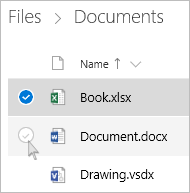
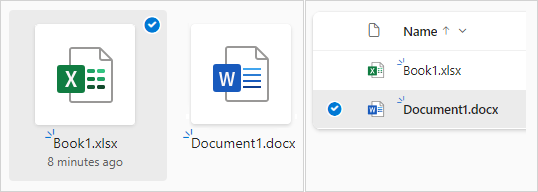
To select all files in a folder, click the circle to the left of the header row, or press CTRL + A on your keyboard. (You can also select several files at once by selecting one file, scrolling down the list, then hold down the Shift key while left-clicking the last item you want to select.)
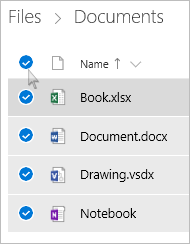
On the bar at the top of the page, select Delete. (You can also right-click the selected file or folder and select Delete.)
Note
If you do not see the Delete icon in the top navigation bar, or when you right-click a selected item, you may not have permission to delete that file or folder.
To delete a folder, rather than just its contents, you may need to go up or back a level to select the whole folder.

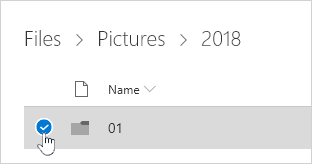
Note
- A personal OneDrive folder does not need to be empty before you delete it. However, you may want to check beforehand that there are no files or sub-folders within it that you want to keep.
- If your admin has enabled retention in OneDrive for work or school accounts, you'll need to empty the folder completely before you can delete it.
Remove items from your Shared list
Open the Shared view, and select the files or folders you want to remove by pointing to each item and clicking the circle check box that appears.
To remove an item from the Shared by you section, select the item, and then select Manage Access.
For files shared with a link, select Anyone with this link... and then select Remove Link.
For files shared with other people, select Can Edit or Can View under their name and then select Remove direct access.
Permanently delete items in OneDrive
Your deleted files and folders go to the OneDrive recycle bin from which you can restore files if you need to.
First, select Recycle bin in the OneDrive left side navigation.
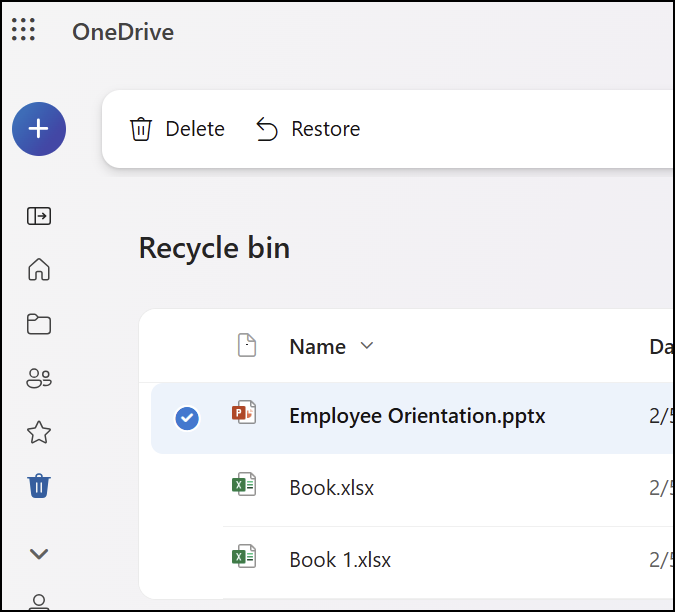
To permanently delete specific files or folders from the recycle bin, select those items, then select Delete in the top navigation.
Delete files to free up storage
Once you delete files from OneDrive and the OneDrive recycle bin, there may be a short delay in seeing that reflected in your OneDrive account's storage availability.
Sign in to your Microsoft account and see your storage quota.
Note
If a Microsoft 365 subscription has expired, you'll need to renew to get the same storage quota again.
Tap and hold the file you want to delete. (To delete multiple files, after selecting a file, check the circles next to each additional file you want to delete).
Note
You can only delete 200 files at a time. If you need to delete more than 200 files at once, go to OneDrive.com.
Tap

Then tap Delete to confirm.
Empty the Recycle Bin
Tap the Me icon
 at the bottom right of your screen, tap the account you're using, and then tap Recycle Bin.
In the Recycle Bin view, select the files you want to delete.
Tap Delete to remove the files permanently.
Note
Android users have the option to empty the entire Recycle Bin at once by tapping Delete All in the upper right.
Delete files to free up storage
Once you delete files from OneDrive and the OneDrive recycle bin, there may be a short delay in seeing that reflected in your OneDrive account's storage availability.
Sign in to your Microsoft account and see your storage quota.
Note
If a Microsoft 365 subscription has expired, you'll need to renew to get the same storage quota again.
Tap and hold the file you want to delete. (To delete multiple files, after selecting a file, check the circles next to each additional file you want to delete).
Note
You can only delete 20 files at a time. If you need to delete more than 20 files at once, go to OneDrive.com.
Tap
 then tap
When asked to confirm your deletion, select Delete.
Empty the Recycle Bin
- Tap the Me icon
in the upper left of your screen, tap the account you're using, and then tap Recycle Bin.
- In the Recycle Bin view, select the files you want to delete.
- Tap Delete to remove the files permanently.
Delete files to free up storage
Once you delete files from OneDrive and the OneDrive recycle bin, there may be a short delay in seeing that reflected in your OneDrive account's storage availability.
Sign in to your Microsoft account and see your storage quota.
Note
If a Microsoft 365 subscription has expired, you'll need to renew to get the same storage quota again.

