
This article helps you fix the "A newer version of Microsoft OneDrive is installed" error message.
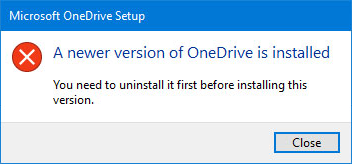
Uninstall OneDrive to fix the “Newer version is installed” error
To uninstall OneDrive, follow these steps:
Note
You won't lose files or data by disabling, uninstalling, or unlinking OneDrive on your computer. You can always access your files by signing in to your OneDrive account online.
- Press the Windows key
 + R to open a Run window.
 - Type appwiz.cpl and click OK.
- Find Microsoft OneDrive in the list and right-click to uninstall it.
If this method is unsuccessful, follow these steps:
Note
Before you edit the registry, we recommend that you make a back up of your registry. If a problem occurs, you can then restore the registry to its previous state. Learn more about How to back up and restore the registry in Windows.
- Press the Windows key
+ R to open a Run window.
- Type regedit and click OK.
- Paste this path into the navigation bar at the top of the Registry Editor:
Computer\HKEY_CURRENT_USER\Software\Microsoft\OneDrive - Right-click the OneDrive folder and select Delete.
Update OneDrive to resolve the “Newer version is installed” message
OneDrive and Windows are frequently updated and keeping your PC up-to-date can help resolve sync problems.
Download the latest Windows updates to get the most out of OneDrive. Windows 10 enables OneDrive Files On Demandwhich can help resolve sync problems. Learn more about OneDrive Files On-Demand.
Download the latest version of OneDrive and install it.
Note
For more information on the latest version, read the release notes.
Select
to open the Start menu, search for OneDrive, and then open the OneDrive desktop app.When OneDrive Setup starts, enter your Microsoft account email address, and then select Sign in to set up your account.
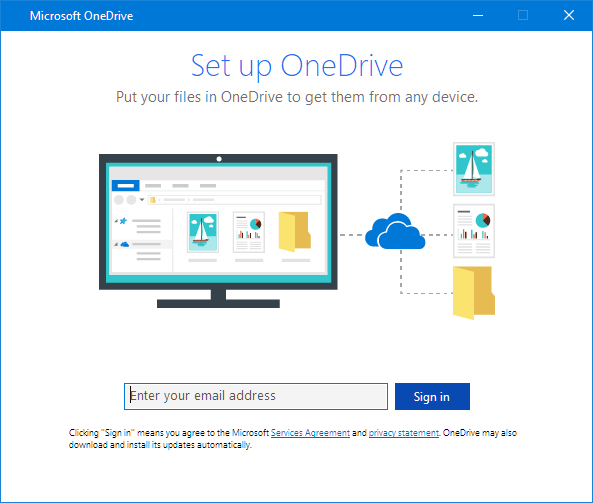
Set up and customize OneDrive after fixing the installation issue
OneDrive Files On-Demand helps you access all your files in OneDrive without having to download all of them and use storage space on your device. Learn more about OneDrive Files On-Demand.
Note
You won't lose files or data by disabling, uninstalling, or unlinking OneDrive on your computer. You can always access your files by signing in to your OneDrive account online.
You can also download or sync fewer files by choosing which OneDrive folders to sync to your computer. If you had chosen to sync only some folders before the reset, you need to do that again once sync has completed.
Note
You need to complete this step for your personal OneDrive and OneDrive for work or school.
Learn more
More fixes for recent OneDrive issues
Need more help?
Account support. For help with your Microsoft account and subscriptions, visit Account & Billing Help.
Technical support. For technical support, select Contact Microsoft Support below, enter your problem and select Get Help.
Mobile users can contact Support by opening the OneDrive app and gently shaking your device.
Community support. Communities help you ask questions, give feedback, and hear from experts with rich knowledge. Ask the Microsoft Community. Do not disclose personal or sensitive information in public forums.