
Use AI-powered agents to streamline workflows and foster collaboration that suits your team or organization. Agents in SharePoint can answer questions about the content on any SharePoint site or document library that the asker has permissions for.
Note
Every site comes with Copilot in SharePoint. It is the upgrade to the ready-made site agent for your users with a Microsoft Copilot license.
Before you begin
To interact with these agents, you need:
- A Microsoft Copilot license, or
- An organization that has enabled pay-as-you-go billing for agents in SharePoint.
To create an agent or edit an agent in SharePoint, you also need edit permissions on the SharePoint site where the agent is located.
Custom-built agents
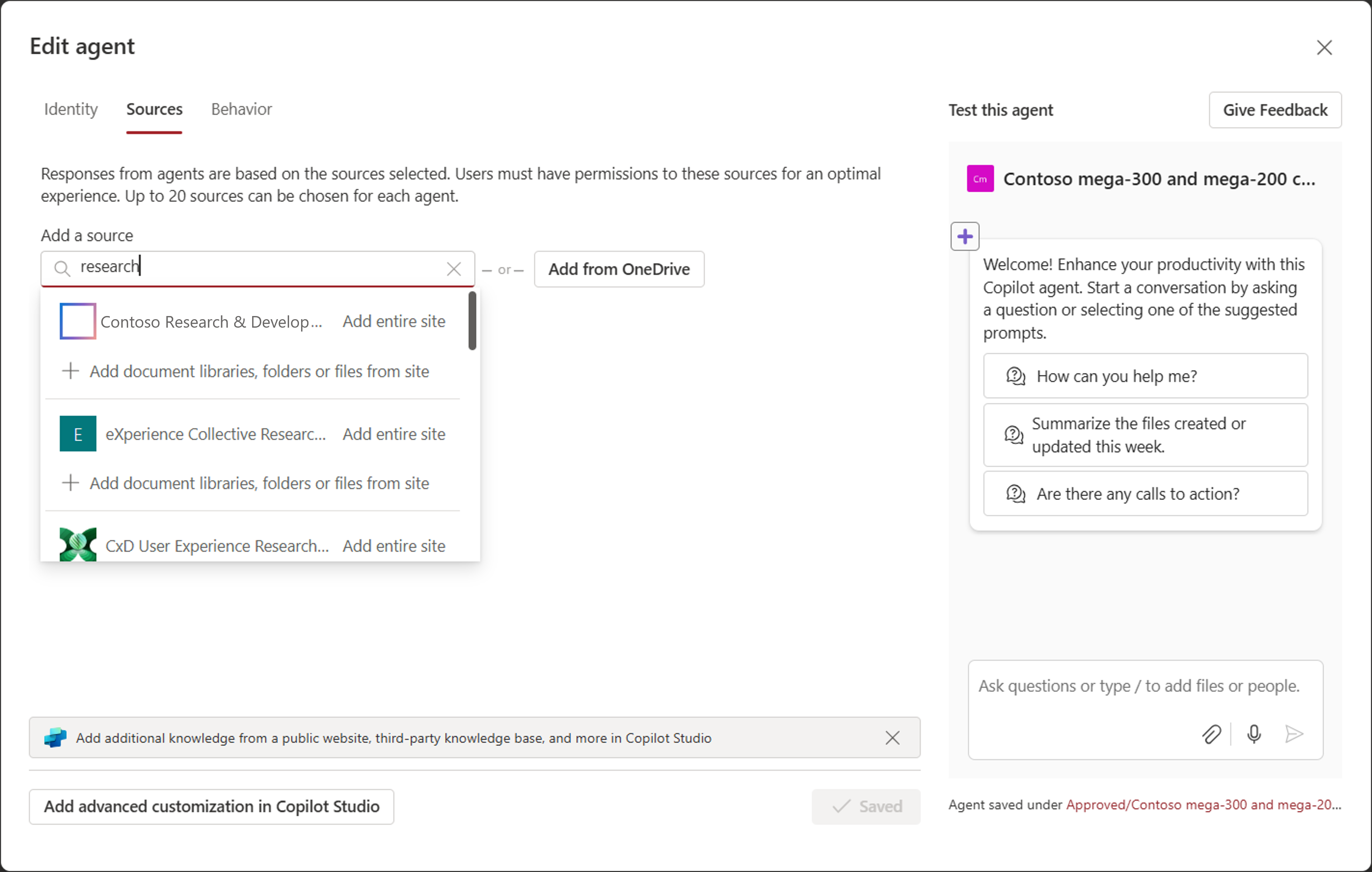
With site editing permissions, you can easily create agents by changing content scope, identity, and behavior. With a custom-built agent, here's an example of how the sales manager at Contoso Camera can include SharePoint sites in addition to their team site, such as the Research & Development site, the Mega-200 product site, to create a customized agent with wider scope and with specific behaviors tailored for their need:
Create a custom pitch script to compare Mega-300 and Mega-200, communicate the rigor of research and development of Mega-300, and the benefits of Mega-300.
Interact with agents in SharePoint
When you visit a SharePoint site or a document library, you can interact with an agent. You can ask an agent to summarize and chat about the content. Depending on the agent's knowledge sources, you might ask questions about topics, tasks, projects, and teams.
Create and edit your agent
With site editing permissions, you can create your own agent and edit an existing agent. You can create and edit an agent to:
- Customize its branding and purpose
- Specify sites, pages, and files your agent should get information from
- Define customized prompts tailored to the purpose and scope of the agent
Share your agent with others
- In the agent chat pane, select the ellipsis, and then select Share.
- Select Copy link.
- Send the link to your colleagues. A recipient can select the link to open the agent.
Note
You can only share an agent that you custom-built. You can't share Copilot in SharePoint that's on the site.
FAQ and data handling
To learn more about agents, see Frequently asked questions.
For more information on how Microsoft Copilot works, see Data, Privacy, and Security for Microsoft Copilot.