

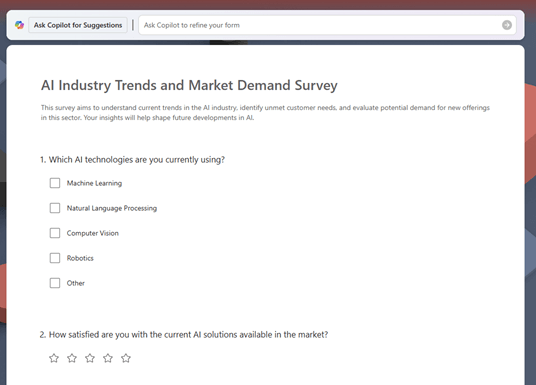
With a simple online form, you can quickly gather the information you need—organized and all in one place. The Microsoft Copilot app can help.
Note
If you're using a work or school account, this feature requires a Microsoft Copilot subscription.
Note
To use this feature, you need an eligible Microsoft 365 subscription. If you're subscribed to Microsoft 365 Personal, Family, Premium, or Pro, some Copilot capabilities may have usage limits and are subject to change over time. Learn more about Copilot features and AI limits in Microsoft 365 Personal, Family, Premium, and Pro subscriptions.
How to create a form with the Microsoft Copilot app
Access the Create section of Copilot using one of the following methods:
- Go to What do you want to create? in a web browser.
- Go to Copilot in a web browser, select the Apps and more icon in the top left of the window, and then select the Create icon.
- Open the Copilot app, select the Apps and more icon in the top left of the window, and then select the Create icon.
If prompted, sign in with an account that has a valid Microsoft Copilot subscription to access the Create section.
In the What do you want to create? window, select Create a form. If you don't see this option, select More... and then select Form in the menu that appears.
If desired, select a template from the Create surveys and forms with Copilot or the Start with a template sections:
- If you select a template from Create surveys and forms with Copilot, a browser window opens with the template form. Fill in the blanks. The more details you give Copilot the better your results are likely to be.
Note
If you receive the error message We couldn't open this template when selecting a template from Create surveys and forms with Copilot, check the top right corner of the browser window that opens to make sure you're signed in. The browser window might open within the Copilot app. If you aren't signed in, select Sign in and then sign in with an account that has a valid Microsoft Copilot subscription.
- If you select a template from Start with a template, a prompt based on the selected template appears in the Describe your form prompt box. You can use this prompt as-is, or make changes based on your needs.
If you're not using a template, enter your form description in the Describe your form prompt box and tell Copilot what you'd like your form to contain and look like.
If you have existing content that you want to base your form on, for example information in Word, PowerPoint, or Excel files, select + Add a file at the bottom left of the prompt box.
Select the Create ➜ on the right hand side of the prompt box to start the creation process. Copilot generates your form based on the description and settings you provided.
Once the form is created, if you're happy with the form, you can send the form out to collect responses. Otherwise you can add additional questions, edit any of the existing questions, or make other changes as needed.