

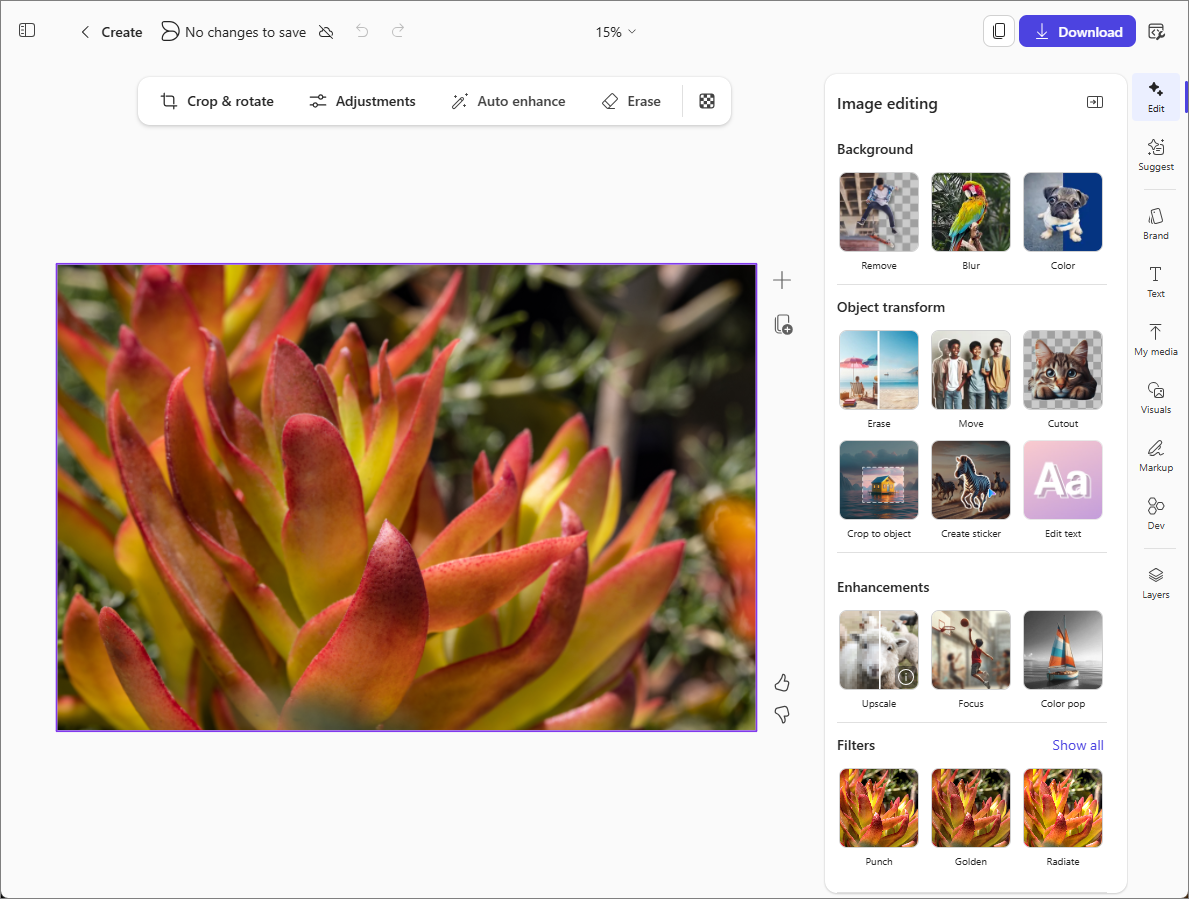
By using the Microsoft Copilot app, you can edit an image with AI-powered tools. Crop, adjust, enhance, erase objects, add text, and apply effects to get polished, professional results.
Note
To use this feature, you need an eligible Microsoft 365 subscription. If you're subscribed to Microsoft 365 Personal, Family, Premium, or Pro, some Copilot capabilities may have usage limits and are subject to change over time. Learn more about Copilot features and AI limits in Microsoft 365 Personal, Family, Premium, and Pro subscriptions.
How to edit an image
Access the Create section of Copilot using one of the following methods:
- Go to What do you want to create? in a web browser.
- Go to Copilot in a web browser, select the Apps and more icon in the top left of the window, and then select the Create icon.
- Open the Copilot app, select the Apps and more icon in the top left of the window, and then select the Create icon.
If prompted, sign in with an account that has a valid Microsoft Copilot subscription to access the Create section.
In the What do you want to create? window, select Edit an image. If you don't see this option, select More... and then select Edit an image in the menu that appears.
Select + Add an image and then either drag an image into the box or select Upload from device to choose the image you want to edit.
After you select the image you want to edit, select Edit ➜.
Select the image editing tool or tools you want to use on the right.
Edit - Select from a variety of tools to crop the image, change or remove the background, enhance the image, add filters, and more.
Suggest - Get AI-suggested designs based on the current image.
Brand - Select a color palette, logos, or fonts if your organization provides brand kits for Copilot to use.
Text - Add standardized or custom text.
My media - Select other images or media to insert into this image.
Visuals - Insert pictures, shapes, illustrations, and more into this image. You can even have the AI generate a new image to insert based on your description of what you want.
Markup - Select from a set of digital pens to draw on or annotate the image.
Layers - Add a background layer to your image.
Tip
If you change your mind about an edit, use the Undo button at the top of the page to reverse it.
The following tools are also available in the toolbar above the image:
- Crop & rotate - Auto crop your image or select a different aspect ratio.
- Adjustments - Edit your image by making adjustments to its brightness, contrast, saturation, and more.
- Auto enhance - Use AI to enhance your image by selecting this option. To compare versions, drag the slider in the center of the image. Slide to the right to view the original image, and to the left to see the enhanced version. Then, choose to either Accept or Discard the edits.
- Erase - Select, brush, or draw a box around an object to edit it.
When you're happy with your edits, select the Save and copy button at the top right to save or copy your updated image.